
Bidders now have the option to pay auction invoices online These payments will go directly to the affiliate managing the auction through the payment processor they have chosen (Square or Merchant/Paytrace).
Bidders are expected to pick up and remove their items during the scheduled removal dates unless other arrangements have been made, this is simply an alternative to paying in person.
This quick tutorial will explain the online payment process that bidders/affiliates can expect using PayTrace/Merchant Account:
1. After the auction has closed, winning bidders will see the ability to initiate payment from the Your Invoices section of the bidder dashboard. The button shown to initiate payment will change depending on which payment processor the affiliate has set up.
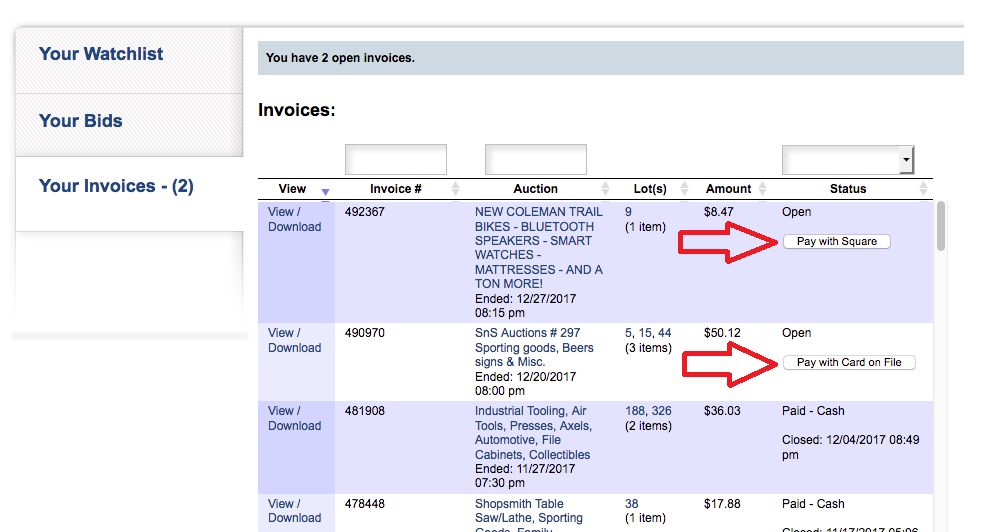
2. Upon clicking the button to initiate payment, the bidder will be taken to a pre-checkout page to view their invoice and total amount due.

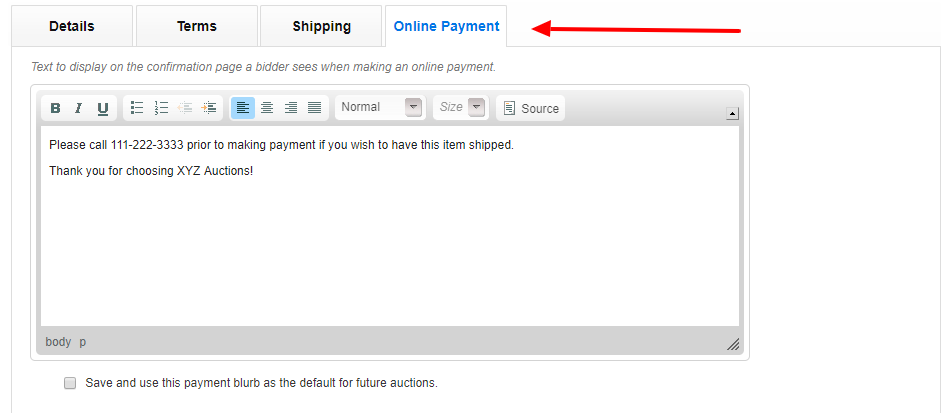
2-A. This pre-checkout page allows affiliates to relay any messages to bidders prior to making payment. (Examples: Call 111-111-1111 prior to paying if shipping is needed. An appointment is required during the removal date. Etc.) Affiliates can enter these notices in the Online Payment section of the Edit Auction page.
3. For the first online payment to an affiliate using Paytrace/Merchant account, bidders will be asked to verify the card they wish to use for online purchases. This card will be kept on file and the bidder will not be required to enter credit card information for each purchase. 
4. The bidder will verify the credit card information on file. REMINDER: this only happens on the first purchase using Paytrace/Merchant account. 
4. Once the card information has been verified, the bidder will be brought back to their dashboard and will be asked to re-initiate payment from the invoice list.

4. The bidder will select "Pay Now" on the bottom of the pre-checkout page.
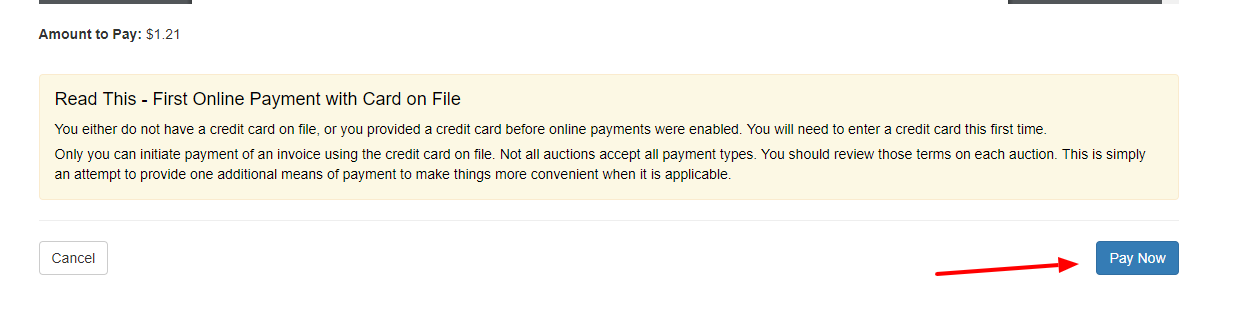
4. When the bidder clicks "Pay Now" the payment will be submitted to the affiliate and the bidder will be alerted that the payment was successful.
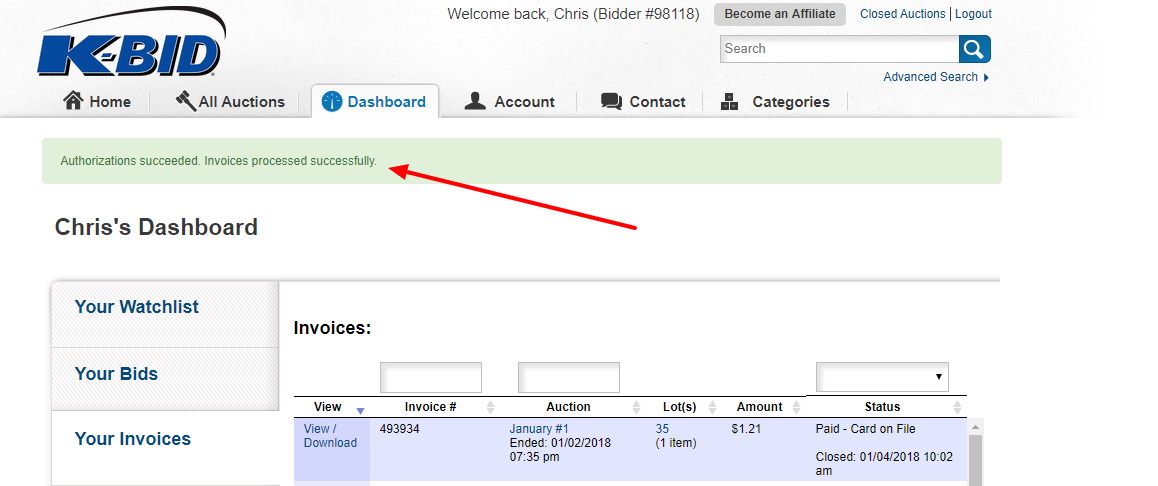
5. Upon payment, the invoice will be processed on the affiliate invoice list and updated within the system. This will alert the affiliate that the invoice has been paid. You can click on the transaction number for transaction details.

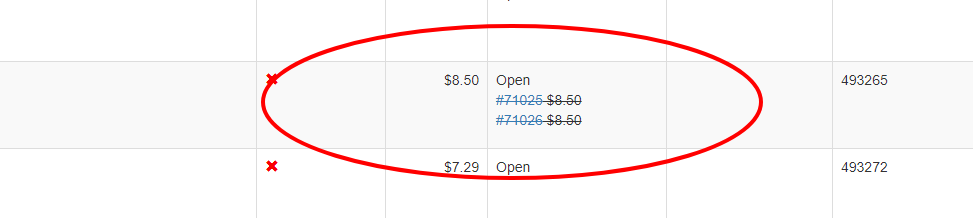
6. Failed transactions will leave the invoice in an open status and alert the affiliate of the attempt on the invoice list. For more information, click on the transaction number for more details.
Comments
0 comments
Please sign in to leave a comment.