
Occasionally, affiliates may conduct an auction where they can't offer winning bidders the option to pay their invoices online, either for the whole auction or for specific lots. For example:
- Removal is located in a place with poor internet or cell reception and the affiliate is concerned about being able to verify an online payment was made.
The affiliate would want to disable all online payments for this auction during the period that no internet access is available. (Note that affiliates are always welcome to call the main office to check the status of an invoice in real time, if the removal is during our business hours).
- Some processors, including Square, prohibit their platform from being used in the sale of certain assets such as:
- firearms, firearm parts or hardware, and ammunition;
- weapons and other devices designed to cause physical injury;
- age-restricted products (e.g. tobacco);
- foreign currency
This list is only a small sample. See full Square terms and conditions here. Affiliates are solely responsible for knowing and adhering to their credit card processor's specific terms and conditions.
The affiliate would want to disable online payments for specific lots on this auction. (Note: "No Online Payment" for one lot will disable online payment for the entire invoice.)
These settings should be used only when absolutely necessary.
_____________________________________________
To set an entire auction to No Online Payments:
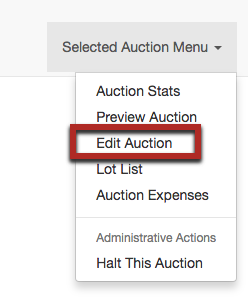
1. Go to the Edit Auction page for the auction
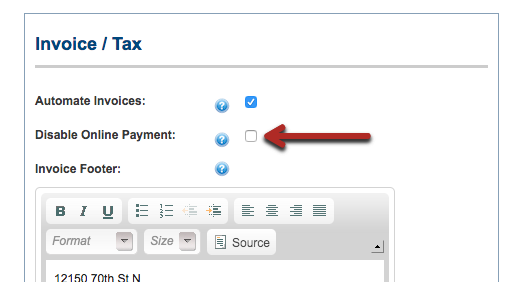
2. In the Invoice/Tax section, check the box for "Disable Online Payment"
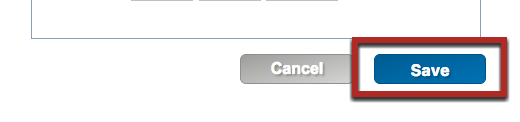
3. Save your change.
________________________________________________
To set a single lot to No Online Payment:
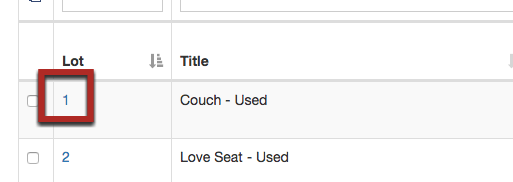
1. From your Lot List, click on the blue lot number to open the Edit Lot page.
2. Check the box for "No Online Payment"
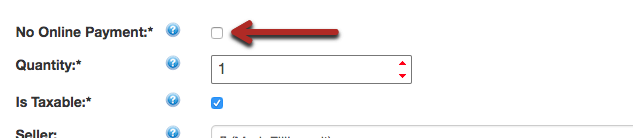
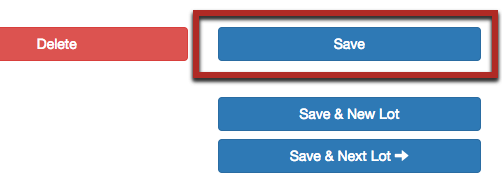
3. Be sure to save your changes.
There is no Batch Edit feature planned for the No Online Payment checkbox. You will manually need to edit each individual lot.
Comments
0 comments
Article is closed for comments.