
Fees and Taxes Info
Affiliates selling titled/registered assets are responsible for complying with the titled/registered asset regulations of the state the auction is located in. In Minnesota, all titled/registered vehicles must be sold through a dealer licensed in the state. Any fees the winning bidder will be subject to paying at the time they take possession of the vehicle from the affiliate, must be listed on the item description page in the 'Fees and Taxes' section. Each fee type and amount must be listed individually in the 'Fee and Taxes' section (see instructions below). If the winning bidder will not be charged additional fees at the time they take possession of the vehicle on removal day, but the item purchased is subject to additional fees, this information should be disclosed in the item description.
Fees can be assigned or modified on a Lot at any stage of an auction. Fees assigned to an item before the close of an auction will be calculated and added to the winning bidder's invoice at the time the auction closes and invoices are generated. If fees are changed or added after an auction closes, the winning bidder's invoice will be regenerated and accurately reflected on the auction invoice appearing on the bidder's dashboard.
The 'Fees and Taxes' section of individual items can be used to denote:
- Vehicle Fees (DMV or DNR)
- Required Removal/Rigging Charges
- Shipping & Handling Fees
- NICS Charges(Firearms)
- Other Required Fees
Important notices:
- The Sales Tax Report only shows the sales taxes collected on the bid price and the buyer's premium. If an affiliate adds a sales tax in the fees section, this sales tax will not be included in the Sales Tax Report. If a taxable fee is added to the fee section, the sales taxes for the taxable fee will not be included in the Sales Tax Report.
-
Fees assigned to an item are seen by everyone viewing the item. These fees remain a part of the item listing after an auction closes and is archived. Invoice fee changes or additions must be made prior to invoice processing to ensure the Close Report accurately reflects the amount collected for each invoice.
Removing Sales Tax From an Item Description
Vehicle sales taxes are generally handled very differently from the sales taxes collected for non-vehicle sales. The sales tax rates charged for vehicle and non-vehicle sales often vary, and the recipient of the collected sales taxes is often different. Consequently, vehicle sales taxes are often entered as tax exempt on the item description page and then added as a line item in the 'Fees and Taxes' section for the item.
Affiliates using K-BID as their DOR are responsible for ensuring each of the titled/registered assets on their auctions are identified as tax exempt on the item description page. This is done by simply unchecking the 'Is Taxable' box.
Assigning Fees to Vehicles or DNR Registered Items (K-BID Acting as Dealer of Record)
Please contact the K-BID Title Department at 763-479-6940 for questions regarding vehicle fees.
K-BID can serve as the Dealer of Record (DOR) for affiliates that do not possess a Minnesota Dealer's License, or do not wish to use a third party dealer as DOR. The K-BID Title Department will assign applicable vehicle fees (DMV or DNR) to auctions located in Minnesota upon receipt of all required paperwork for each T/R asset in the auction. Further details found on K-BID's Dealer Services.
Assigning Fees to Vehicles or DNR Registered Items (K-BID Not Acting as Dealer of Record)
Please contact the K-BID Title Department at 763-479-6940 for questions regarding assigning vehicle/DNR fees.
Affiliates who are operating under their own Dealer's License, using a third party Dealer, or are outside of the State of Minnesota, are responsible to assign vehicle fees to T/R lots. Affiliates are able to add and subtract fees as necessary to make sure that the winning bidder invoice accurately reflects the fees paid by the bidder. Invoice adjustments must be made prior to the invoice being processed to ensure the Close Report accurately reflects each invoice in the auction.
Detailed vehicle fee types and amounts must be entered for each T/R asset in the 'Fees and Taxes' section on the item description page for each asset prior to the auction being published. Fees that can't be determined until after the auction closes and the winning bidder is announced, should be listed in 'Fees and Taxes' using the highest estimated cost. Sales taxes should be listed as 6.5%, even though the cost could be as low as $10; Wheelage fees should be listed when the auction is published and removed after the auction closes if the the winning bidder is subject to the wheelage tax.
Examples of detailed vehicle fees in Minnesota (amounts for each fee type must be entered):
- Doc. Admin. (Up to state maximum.)
- Excise Tax
- State Vehicle Fee
- Title Fee
- Transfer Fee
- Sales Tax
- Filing Fee
- Tabs
- Plates
- Conversion Fee
- DNR Registration Fee
- DNR Sales Tax (varies depending on the sale location)
Examples of vehicle fees in Minnesota dependent on purchase price or winning bidder address:
- Sales tax (Passenger vehicles in Minnesota are charged a $10 flat fee for anything 10 years or older and under $3,000, otherwise it is calculated at 6.5%). The sales tax line item should indicate 6.5% when the auction is posted.
- Wheelage (Charged based on the county of residence of the Minnesota buyer for passenger and commercial vehicles). Wheelage Fee of $20 should appear in 'Fees and Taxes' and removed post-auction if the winning bidder isn't subject to this fee.
- Tabs (Could change depending on how a vehicle is registered). The tab amount should be listed as the highest amount the winning bidder would have to pay.
Internally, the K-BID Title Dept. makes sure that every possible fee is assigned at the time the auction is published for the maximum amount that could be charged. After the close of the auction we verify that the fees are correct and remove or make adjustments for each item. Since the winning bidder has instant access to the invoice and fees are automatically generated, we have found that it is more palatable for the buyer if we have to lower the total invoice amount rather than raise it due to a variable fee.
Winning Bidder is a Dealer or Out-of-State:
Making adjustments for winning bidders who have provided a valid Dealer's License or are taking the vehicle out-of-state is as easy as removing the unnecessary fees before processing the invoice. Invoices should never be processed with an incorrect bid total or fee amount as it will affect the auction Close Report and the bidder invoice.
**NOTE: State laws/regulations vary from state to state related to selling titled/registered assets. Affiliates selling titled/registered assets are responsible for complying with the titled/registered asset regulations of the state where the auction is being held.
How to Add Fees to a Lot
Fees are added to a lot after the lot has been created (saved or imported). Unlike reserve amounts or seller IDs, fees will not import from Wavebid software at the time pictures and descriptions are uploaded.
1. Access the lot detail (Edit Lot) page by clicking on the lot number in the Lot List. The Lot Fees section is at the bottom.
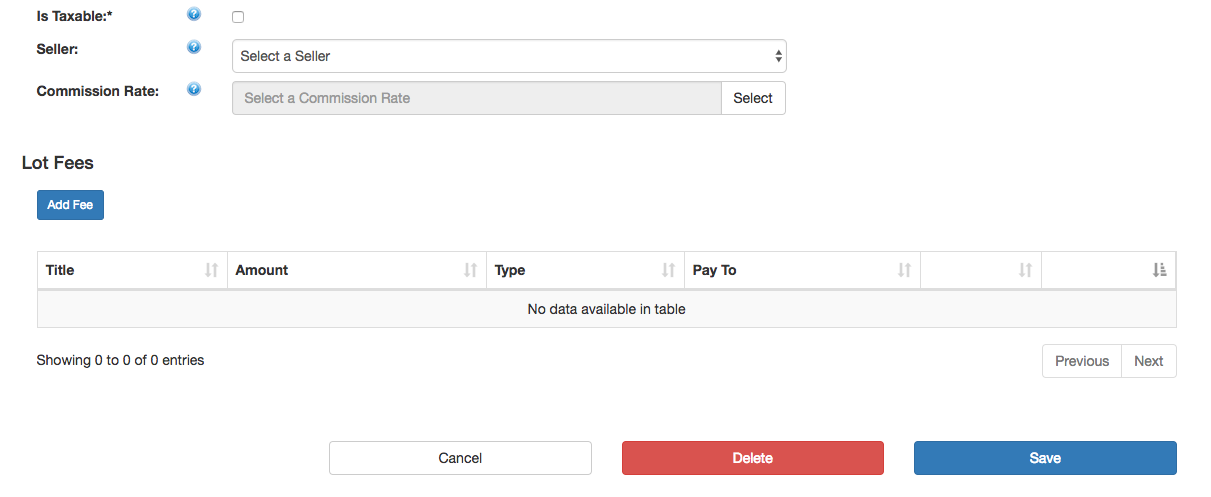
2. Click on "Add Fee" and complete the form. The first time you enter a particular fee, you will need to fill in the Title, Amount, Type, and Pay To fields. The Type drop down lets you determine if the fee is based on a fixed value or is a percentage based fee (sales tax). The Pay To drop down menu should state who is collecting the fee. In the case of an affiliate Dealer or shipping and handling, that option would be set to the affiliate managing the sale.
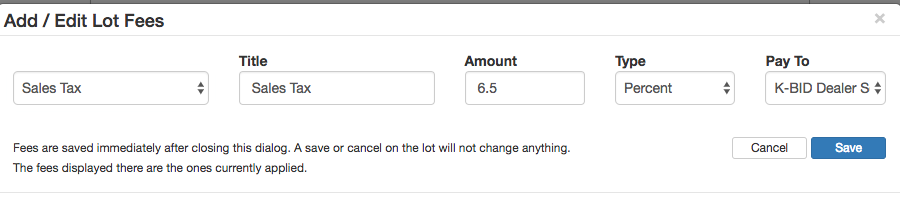
After a fee has been created once, on future lots/auctions you will be able to select it from the drop down menu.
3. Repeat Step 2 for each fee being added to the lot.
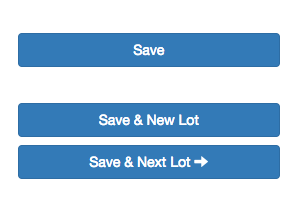
4. Once fees have been added and are verified, select one of the Save options in the bottom right hand corner of the page.
Verify that the fees are correct by previewing the item listing. Example:

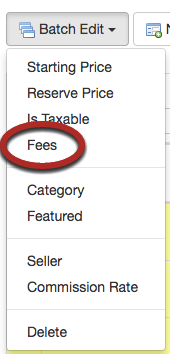
If you have multiple lots that require the same fees, you can also add or remove those fees using the Batch Edit function on the lot list.
Comments
0 comments
Article is closed for comments.