
Using the new "Focused Edit Mode" function during your auction creation will make formatting your lot titles and descriptions quicker and easier. This is a great tool to pair with the Spreadsheet Upload method of adding lots to your auction.
Editing Existing Lots
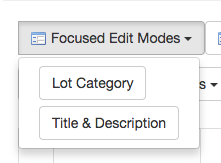
From the Lot List, click on "Focused Edit Mode" and select "Title and Description." You DO NOT need to select any lots first.
Your entire lot list will be displayed. 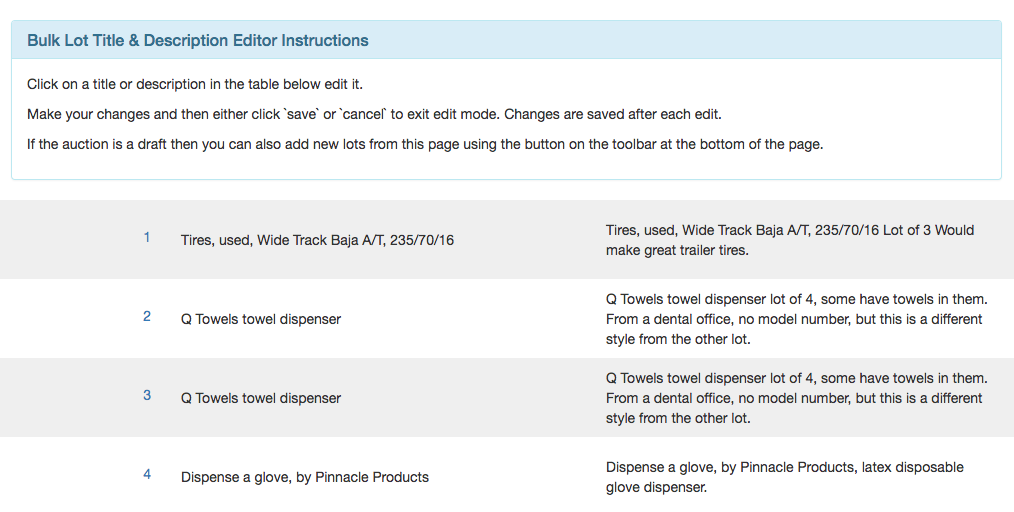
To edit a title or description, simply click on it. A rich text editor will open. Make your changes and click Save to close and return to the Focused Edit Mode page.

Adding New Lots:
While your auction is in Draft status, you can now quickly add new lots by clicking the New Lot button at the bottom of the Focused Edit Mode page.
A simplified lot creation editor will open that will allow you to fill in the lot title and description. The lot number will be automatically generated based on your last lot number, but it can be edited if needed. Click Create to save the new lot and return to the Focused Edit Mode page.
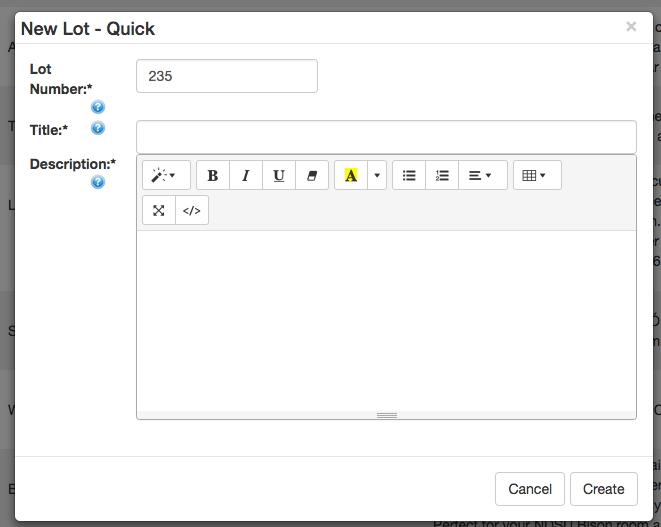
This "Quick Create" tool will assign K-BID defaults for the following fields:
- Quantity = 1
- Starting bid = $5.00
- Reserve = $0.00
- Is Taxable = Yes

You can edit these defaults and assign Sellers/Commissions using the Batch Edit function.
Categories can be assigned using Batch Edit or the Focused Edit Mode > Categories function.
Exiting Focused Edit Mode
To exit Focused Edit Mode, select any other page (Lot List, Auction Preview, etc.) from the Auction Menu, or click the Back button in your browser.
Comments
0 comments
Article is closed for comments.