
Lot descriptions can be created and entered within a spreadsheet and uploaded into K-BID.com. This will save you time by giving you the ability to upload multiple lots at once. It is strongly recommended that you work in Microsoft Excel to create your spreadsheet.
The import spreadsheet template can be found and downloaded on the Import Lots page from the Lot List.
Important information regarding spreadsheet uploads:
- An uploaded spreadsheet will always overwrite existing lot data when matching lot numbers exist.
- Only rows that contain both a lot number and a description will be uploaded to your Lot List.
- There is no limit to the amount of imports or lots that you can upload.
- You can edit each lot within K-BID.com after it has been imported to get the formatting the way you would like it.
- The only required fields for a spreadsheet upload are Lot Number, Title and Description, although every element of a lot can be uploaded such as reserve price, starting price, is taxable, etc.
- NEW! To include Lot Categories in your spreadsheet, you can either type the exact category into the field OR you can enter the corresponding numeric code (i.e. if your category is Coins, enter 10 in the Category field). The numeric codes can be found in the attached document or under Reports/Tools on your Affiliate Dashboard.
- YOU MUST USE THE SPREADSHEET TEMPLATE ATTACHED TO THIS PAGE AND SAVE IT AS A TAB DELIMITED (.TXT) FILE.
It is important to remember to save your spreadsheet as a "Tab Delimited Text" file when it is ready to import. Other file formats (CSV, XLS/XLSX) will fail to upload.


* When saving as Tab Delimited Text, select "Save Active Sheet" and "Continue" when prompted.
Now that your spreadsheet is created, you can upload the lots into your auction.
- Enter the Upload Lots button on your within the Lots section of the auction.
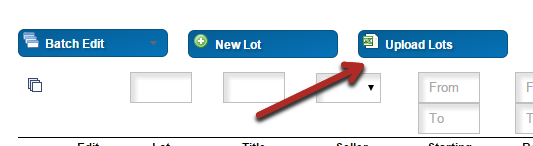
- Select the Choose File button and find the tab delimited file that you have created. Once selected, choose the Upload option.

- The Import Log will display each import that you have attempted for that auction and will alert you if there were any errors during your upload. The Details button will give you more information regarding the upload and what/if any errors occurred.

- Check to make sure your items have imported correctly using the Lots and Preview tab.
- Make any adjustments using the Edit button next to each item on the Lot page.
Comments
0 comments
Please sign in to leave a comment.