
Adding your seller/consignor and commission rate information into the K-BID system will make settling your auctions and paying out your sellers quick and easy.
Adding a New Seller
- Seller profiles can be created, saved and edited within the Seller Overview page within the affiliate toolbar.
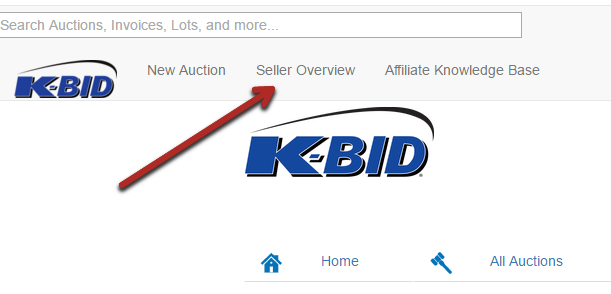
- Seller information will remain confidential and can be used over multiple auctions. To create a new record, select the New Seller button on the bottom of the Seller Overview page.
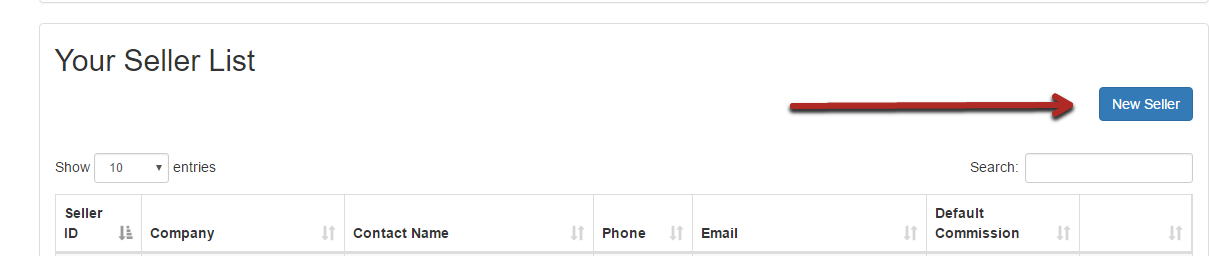
- Enter your seller information:
|
Seller Info
|
Detail
|
|---|---|
| Seller ID | Optional unique identifier. If using a spreadsheet upload, this ID is input on the spreadsheet and the seller profile will automatically be assigned. Recommended to use something that can easily be remembered (think GOOG, the ticker symbol for Google). |
| Seller Name (required) | Can be a company name or an individual contact |
| Company Name | Company seller name |
| Email (required) | Seller email address |
| Address | Seller Mailing or Physical Address |
| Phone |
Seller contact phone number |
| Default Commission Rate | The default commission rate for this seller entered as a percentage. This percentage can be adjusted within a specific auction if it deviates from the default commission rate. See Creating and Assigning Commission Rates below for more detail. |
How to Assign a Seller in an Auction
Now that your seller has been created, you can assign them to the appropriate items within an auction. This process can be done before, during or after the auction has closed. There are 3 ways in which this can be accomplished.
Assign Sellers within the Edit Item page.
- Enter the item from the Lot List or create a New Lot.
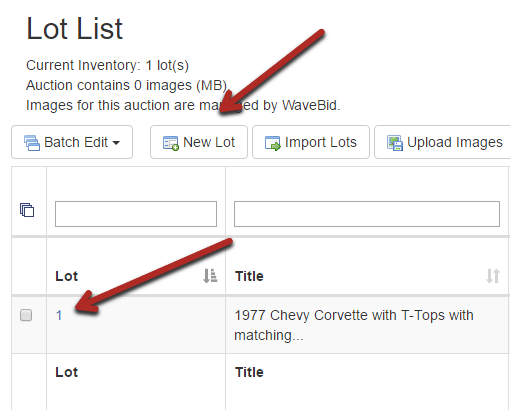
- Scroll to the bottom of the page to the Seller section.
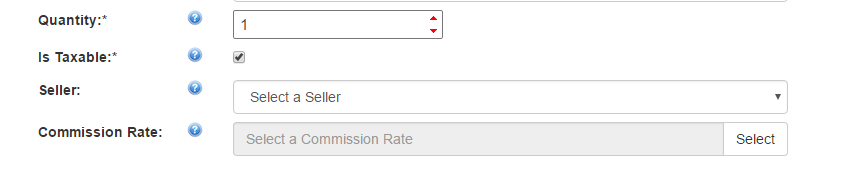
- Select the appropriate seller from the drop down menu. The default commission rate that is assigned to this seller will automatically be assigned. If this should deviate on a specific item, you can choose a separate commission rate on a per item basis.
Assign Sellers Using the Batch Edit Options
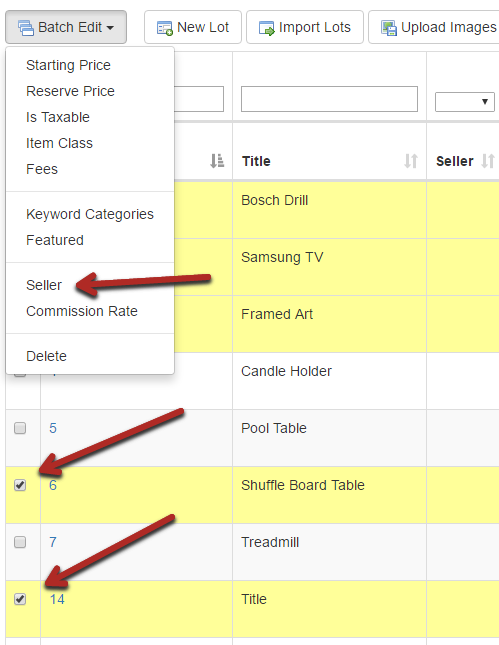
- Navigate to the auction Lot List.
- Select the appropriate items that need to be assigned to a seller.
- Using the Batch Edit options, select the Seller option and assign the correct seller. The default commission rate that is assigned to this seller will automatically be assigned. If this should deviate on a specific item, you can choose a separate commission rate on a per item basis.
Assign Sellers in a Spreadsheet Upload
- Within the Seller ID column on the inventory spreadsheet, assign the appropriate Seller ID that was input when the seller was created.
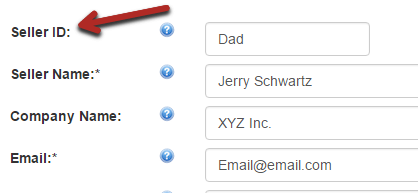
- In this example, I have chosen to use the Seller ID of Dad. Once uploaded, the system will automatically assign lots using that Seller ID to Jerry Schwartz.
Creating and Assigning Commission Rates
Commission rates can be assigned to a seller or to an individual lot, and can be done at any time before, during or after an auction (keep in mind that changing the commission rate on a lot for an auction that has been settled can create discrepancies between K-BID's auction record and your external records).
To create a new commission rate:
Open any existing seller or lot.
Locate the Commission Rate line in the seller/lot details page and click Select.

Click New Rate and complete the next screen.
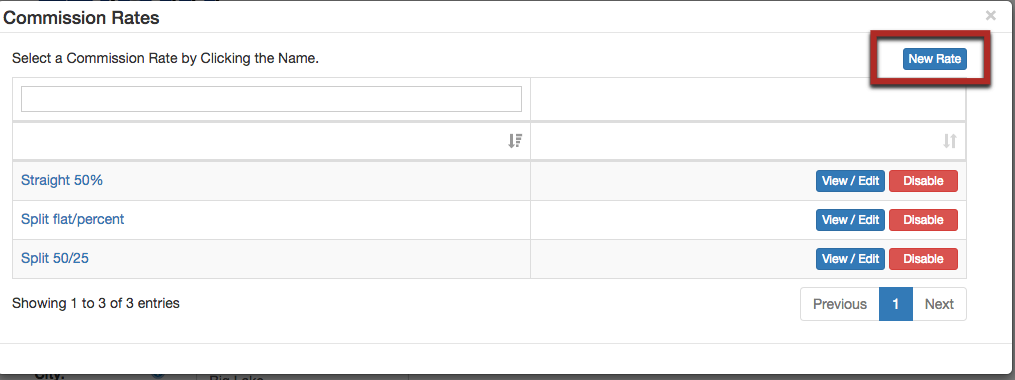
- Choose a name that is descriptive of the rate rather than descriptive of the seller or lot so that you can use it across multiple sellers/lots.
- If you are setting up a straight commission, leave the Price Range fields defaulted to 0 and "infinity." If you offer tiered commission pricing, enter the upper limit of your lowest tier.
- Select the Rate Type (% or flat fee) and enter the rate/amount.
- Click Save.
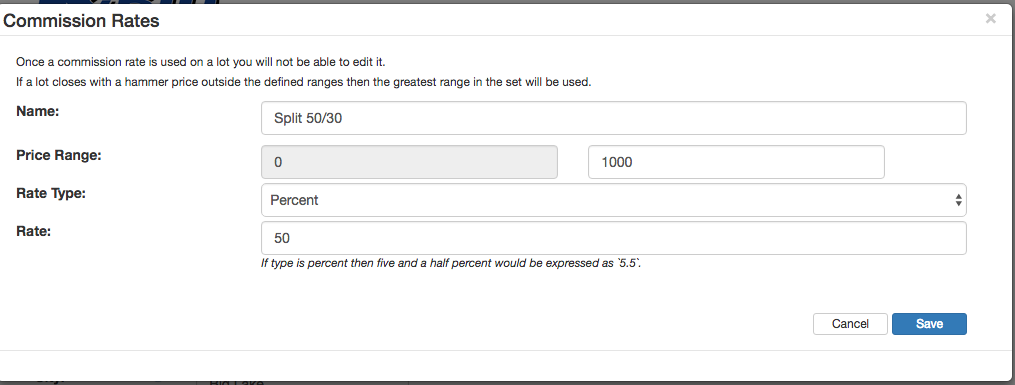
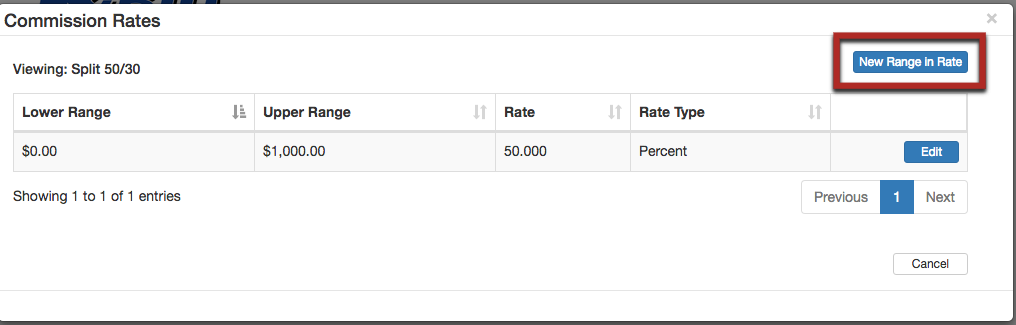
- To add a new tier to a rate, click View/Edit next to the rate and then click New Range in Rate. The bottom of the range will automatically be set to the top of the previous range + 1 cent. Enter the new upper range, type, and rate. Click Save. You can now close the Commission Rates window.
To assign a rate to a seller as a default, Edit the seller, click Select next to Default Commission, and click the name of the rate.
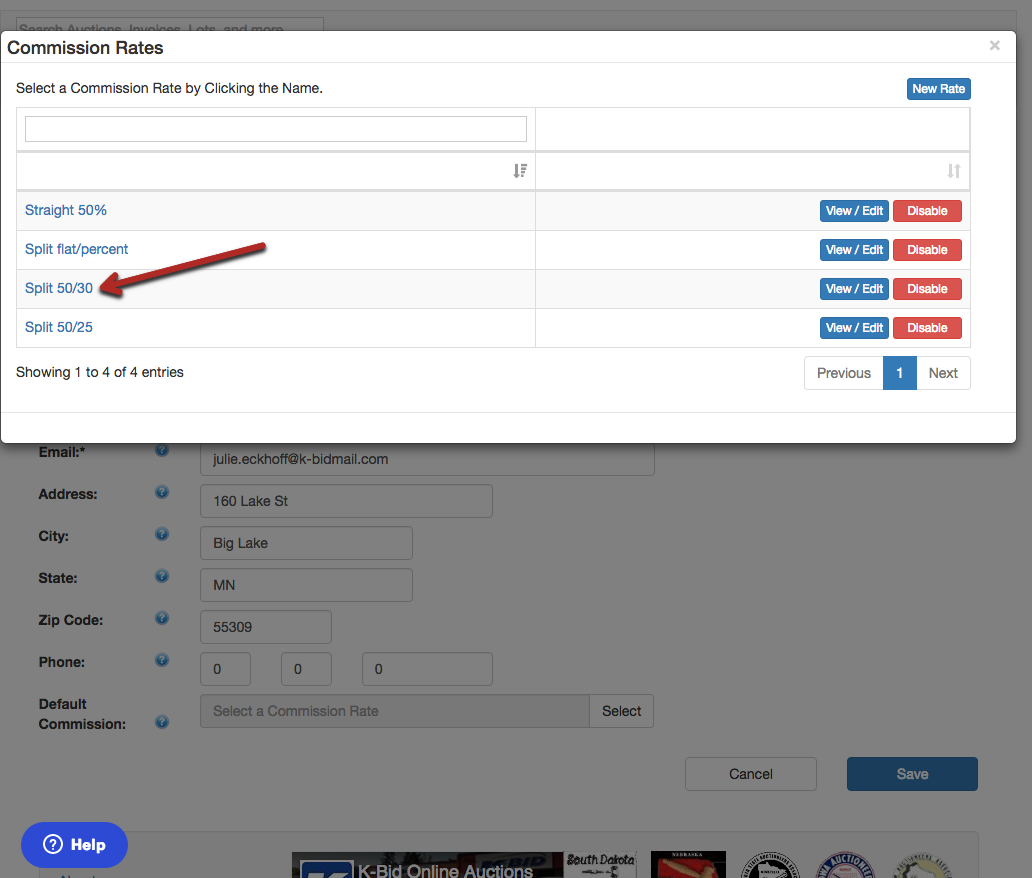
Going forward, the rate will automatically be applied to lots assigned to this seller (this does not affect lots already assigned).
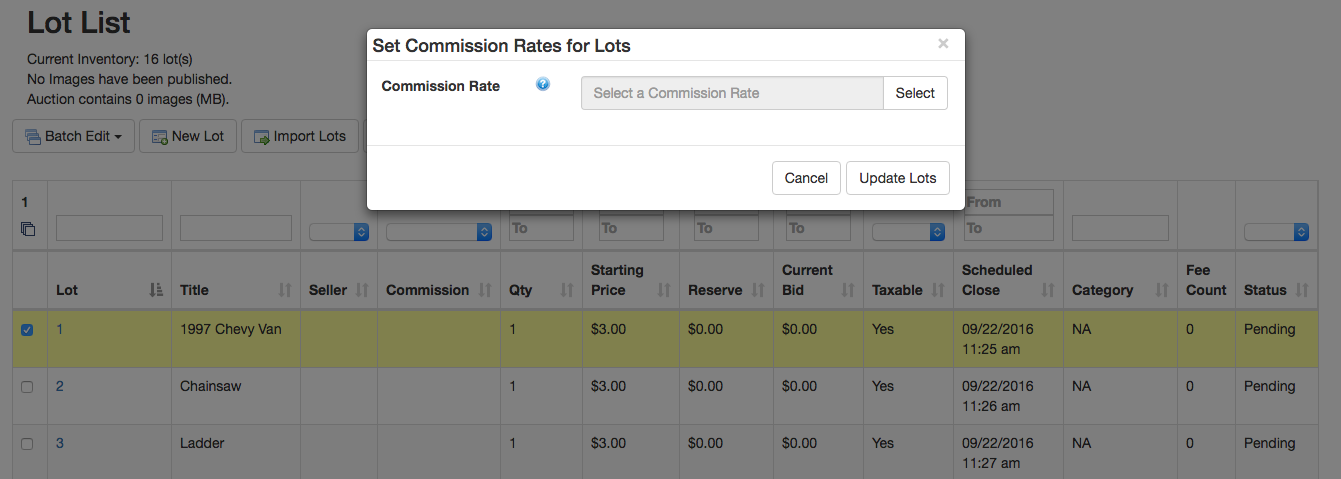
To assign a commission rate to one or more specific lots, select the checkmark next to the lot number(s) and use Batch Edit > Commission Rate. This will override any default commission associated with a particular seller.
IMPORTANT: Once a rate has been created, it cannot be changed. Use the Disable button to remove outdated or incorrect entries from your list of rates.
Comments
0 comments
Please sign in to leave a comment.