
Adding videos are a great way to enhance a description and show bidders what they otherwise might not be able to gather from pictures alone.
How to Add a Video to an Item
The first step to adding a video to an item is to upload the video directly into YouTube. YouTube is an incredibly easy and user friendly platform to work with and has easy to follow instructions. Most phones will allow you to upload a video to YouTube in just a few clicks. One of the benefits of using YouTube is that you can store and keep all of your videos in one place by creating a channel. For more information on using YouTube and to setup an account, use the following links:
After your video has been uploaded into YouTube, you will want to navigate to Edit Item page of the lot by clicking on the lot number ( or create a New Lot if it has not been created yet).
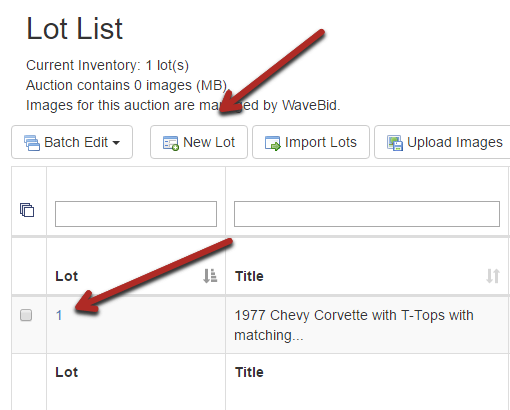
On the Edit Item page you will see the option for up to 3 YouTube videos.
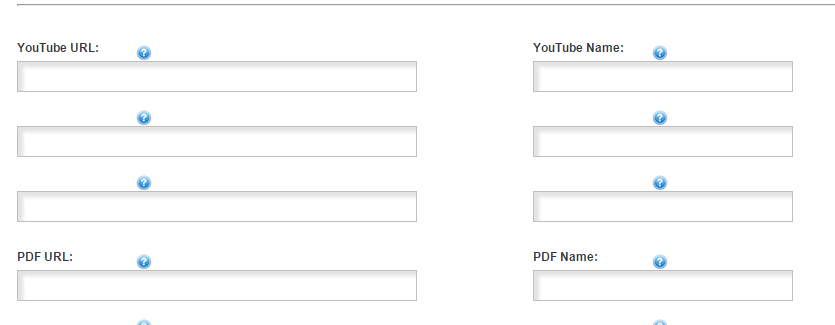
The YouTube URL is where the URL of the video will be pasted, the YouTube Name will just show the name of the video once it is uploaded. You will typically want to name this something related to the item (i.e. 2005 JD Tractor)
Navigate to the video that you have uploaded in YouTube so you are able to watch it as a viewer. From there it is as easy as copying the URL of that webpage and pasting it into the YouTube Name section within K-BID.
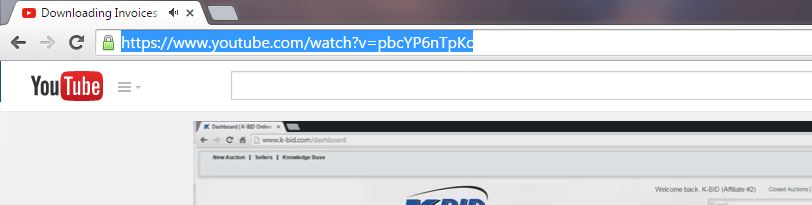
It should look something like the example above. Do not copy the Share or Embed URL of the video within the share options of YouTube, this will not work within K-BID.
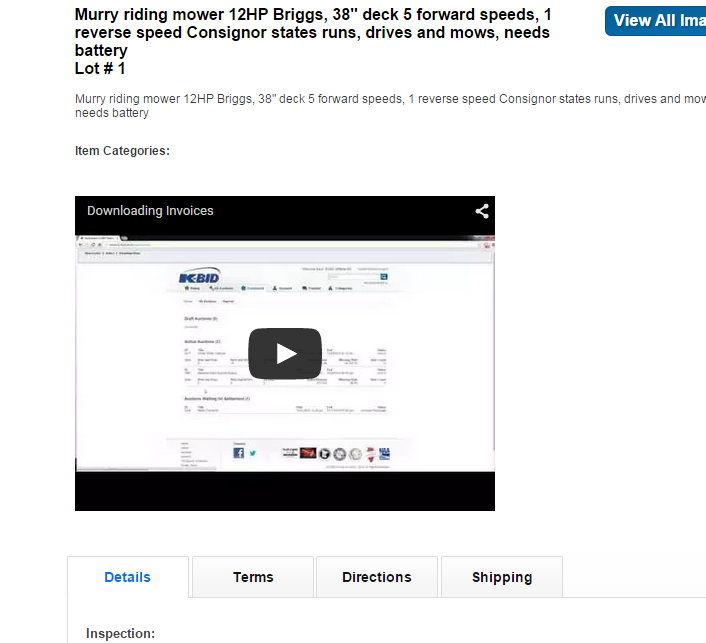
Once you save the item, you will see the video directly embedded into the item description. Be sure to check the item to make sure that you have attached the correct video and everything is working as it should.
Comments
0 comments
Please sign in to leave a comment.