
Adding a PDF to a description can be helpful if you need to show a product manual or other important information about an item. In order to attach a PDF to an item it needs to first be uploaded to an online hosting platform such as Dropbox or Google Drive (make sure that the sharing settings for the document are Public/viewable by anyone).
After your PDF has been hosted online, you will want to navigate to the Edit page of the lot ( or create a New Lot if it has not been created yet).
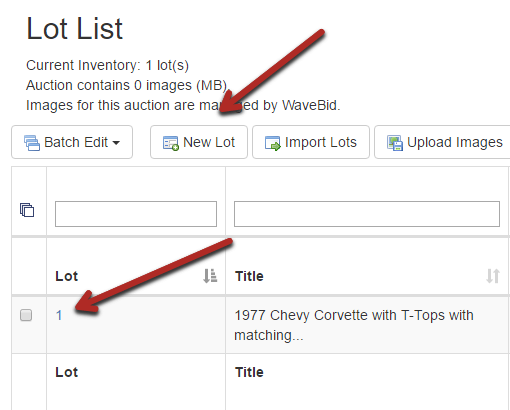
On the Edit Item page you will see the option for up to 3 PDF's.
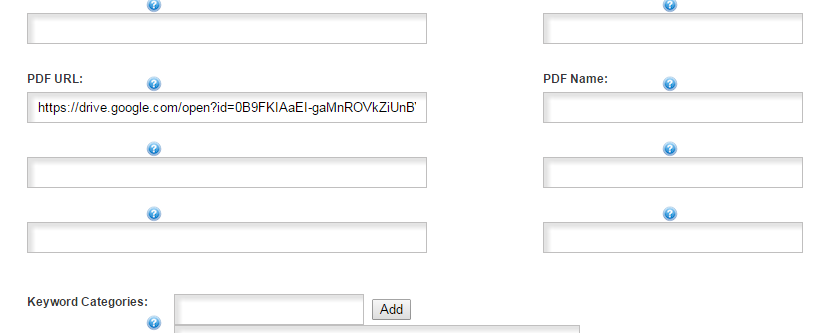
The PDF URL is where the URL of the PDF will be pasted, the PDF Name will just show the name of the file once it is uploaded. You will typically want to name this something related to the item (i.e. 2005 JD Tractor Manual). Find the URL that was created by uploading the file to the online host. From there it is as easy as copying the URL of that webpage and pasting it into the PDF Name section within K-BID.
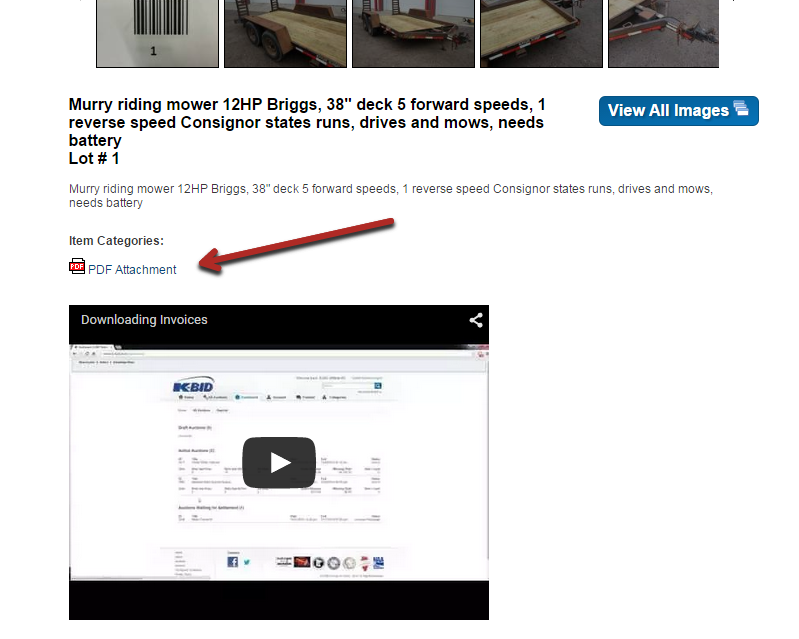
Once you save the item, you will see the PDF directly embedded into the item description. Be sure to check the item to make sure that you have attached the correct PDF and you are able to view the document.
Comments
0 comments
Please sign in to leave a comment.