
The Manage Images option is used after images have been uploaded. This page will allow you to move photos to a separate lot, delete photos and rotate images.
You can access the page from the Lots section of your auction.
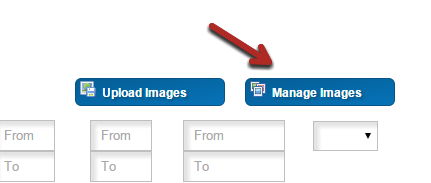
Or on the bottom of the Upload Images page.
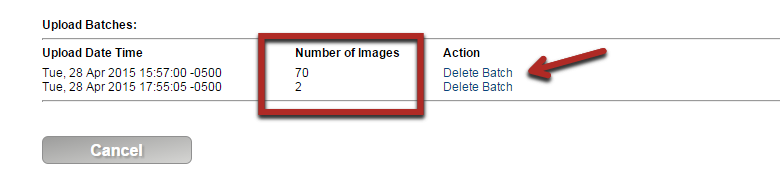
Images are uploaded in batches, this allows you to see how many images have been uploaded with each batch and allow you to bulk delete any errant batches. If needed, you can delete all batches and start over.
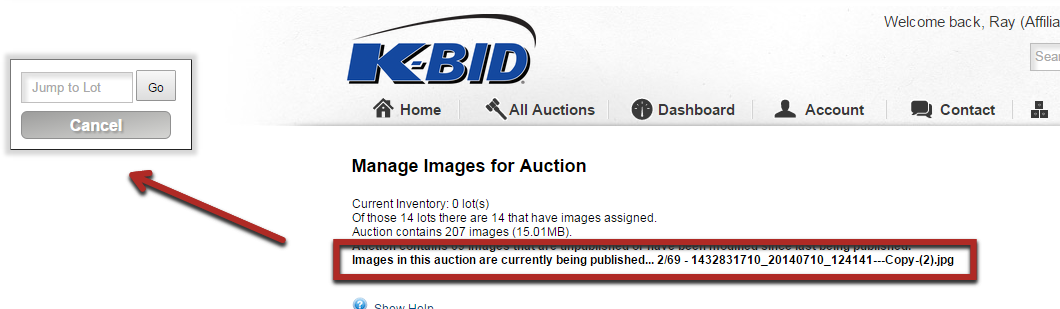
Within the Manage Images page you will see the floating save option on the left hand side as well as the option to jump to a specific lot. Make sure to Save your changes on this page when ready.
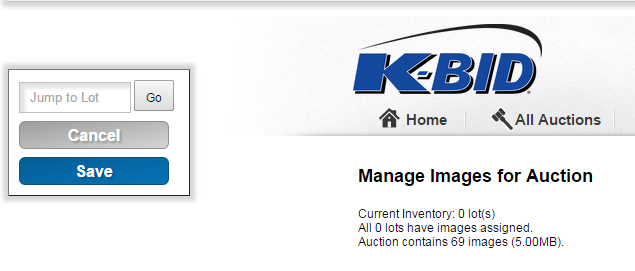
Be aware that every time that you Save on the manage images page that the system must account for all of the changes that have been made. Therefore, the system will not allow you to save again until the previous save has been completed. You will notice on the Manage Images page that the option to Save again will disappear if a previous Save is working in the background, you will also see the image status (box in red below), showing you the progress of the previous action.
To avoid having to wait for a previous save, best practices would be to upload a batch of images and then make your image moves/edits/changes prior to saving. Do not start making edits on the Manage Images page if the save option is not present as you will not be able to save your work. Refresh the page to verify that the previous save has been completed and you will be able to make additional changes.
Managing Images without Barcodes
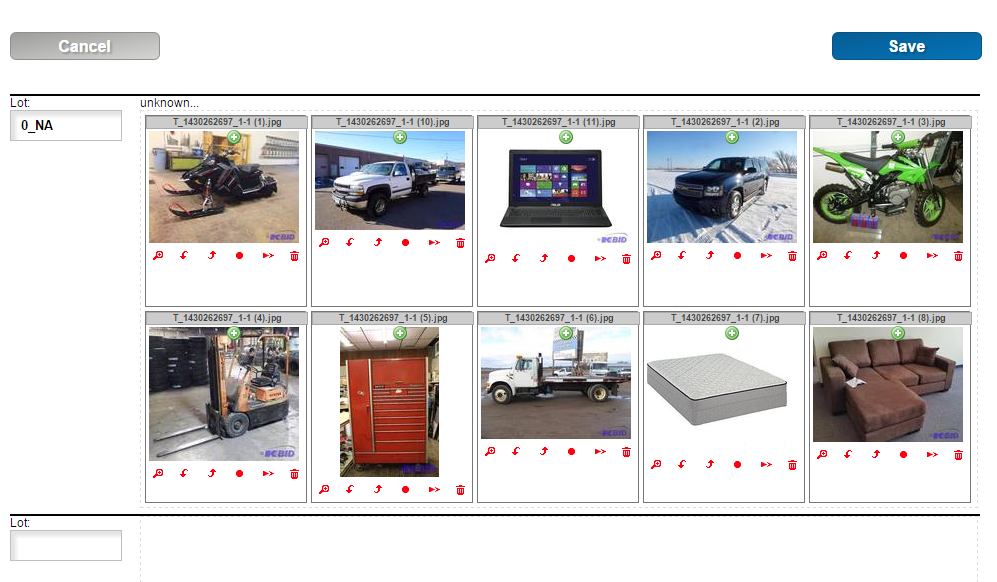
Images that are uploaded without barcodes (Uploading Images Manually) will need to be manually assigned to the correct lots. You can do so by dragging and dropping into the correct lot, or using the Move To Lot option (more detail below).
- If you are not using barcodes, it is recommended to create Lots (Lot Numbers, Titles, Descriptions) prior to uploading images. When Lots are created prior to image upload, this page will have placeholders for each lot in order to make it easy to move images to the correct lot. If Lots have not been created, the system does not realize that a lot exists and limits your ability to create a new lot on this page.
Individual Photo Options
The following photo options are available underneath each photo.

Explained from left to right
|
Option
|
Description
|
|---|---|
| View Full Size | Allows you to view the full size image. |
| Rotate Counterclockwise | Rotates image to the left. |
| Rotate Clockwise | Rotates image to the right |
| Toggle Delimiter On | Denotes a delimiter (barcode) image. These images will be "whited out" and will not be shown to bidders. Each lot can only have one delimiter (barcode) marked. Marking a second image with the delimiter will move that image and all of those following to a new blank lot. |
| Move To Lot | Allows you to move an image to a different lot. |
| Delete | Deletes the image. |
Comments
0 comments
Please sign in to leave a comment.