
Affiliates communicate their auction results by processing their auction invoices. Accurately processing invoices is essential. The information obtained through invoice processing affects bidder status, sales tax reports, close reports, seller settlements, and K-BID billing totals. Please watch this short video for a tutorial on processing invoices:
**Best Practice - Process your auction invoices immediately following the auction removal. Processing unpaid invoices as No Show, results in the bidder losing their bidding privileges. When a bidder discovers they can't bid, they are often quick to contact the affiliate to pay their unpaid invoice.**
Auction invoices must be processed within 10 days of the auction close date. Affiliates who fail to process auction invoices by the 10th day following the close of the auction, are placed ON-HOLD; meaning their publishing privileges are suspended. Publishing privileges will be restored only after the affiliate is back in compliance with invoice processing timelines.
If you need an extension in processing auction invoices within the given timeframe, please submit a request for an extension by sending an email to affiliateservices@k-bidmail.com. Extension requests must be submitted prior to the 10 day invoice processing deadline. Requests should be very specific and include:
- Affiliate Name
- Auction ID
- Invoice ID
- Winning Bidder Number
- Lot Numbers
- Expected Invoice Processing Date
Affiliates are strongly encouraged to require all winning bidders to pay their auction invoices on the scheduled removal day -- even if the bidder makes alternative arrangements for picking up their winning assets. Requiring payment on the removal day alleviates a lot of uncertainty and hassles for the affiliate --- the affiliate knows the asset sold and the payment went through, he knows the bidder will be motivated to show up on the alternative removal day as he's already paid for the asset, and the affiliate won't have to go through the extra effort of requesting a processing delay as all his invoices can be processed as paid.
Invoice Status
Invoices are processed one of the following ways:
|
Status
|
Example
|
|---|---|
|
Paid (Cash)
|
The bidder paid the full invoice amount in cash. |
| Paid (Check) |
The bidder paid the full invoice amount via check, cashier's check, money order, etc. |
| Paid (Credit) |
The bidder paid the full invoice amount via credit card, debit card, Paypal, etc. |
|
NO-SHOW
|
Bidder did not honor winning bids and/or the terms of the auction. The bidder bears complete responsibility for the invoiced asset(s) not selling. NO SHOW bidders lose their bidding privileges immediately upon the affiliate processing the invoice as a NO SHOW. |
|
No-Sale |
The invoice was unpaid due to an issue with the asset. When an affiliate processes the invoice as a No Sale, a drop-down menu appears asking them to provide a reason for the for the incomplete sale. See below for drop-down menu choices and descriptions. The bidding privileges of the winning bidder are not affected when an invoice is processed as a No Sale. No Sale – Damaged The invoiced asset(s) is discovered to be damaged after the auction closed; winning bidder refuses item(s) at removal or seeks a refund shortly after taking possession of the item(s). No Sale – Misrepresented The lot description/pictures of the asset(s) failed to disclose material facts about the asset(s) or its condition. ‘Material facts’ is information that would impact the bidder’s ability to accurately determine asset value. No Sale – Reserve Lowered The affiliate lowers the reserve on an item after the final bid was placed on that item --- making the high bidder the winning bidder by default. Default winning bidders are not subject to penalty if they refuse to honor their high bid. No Sale – Missing/Stolen The affiliate discovers the invoiced lot is missing during the removal; or inadvertently mixed up the lots given to winning bidders. No Sale – Other Used for unusual situations outside the affiliate’s control: dishonest sellers failing to honor the terms of the consignment agreement, extreme weather affecting a limited removal, etc. |
Once an invoice has been processed as paid, the affiliate cannot re-opened the invoice without contacting K-BID (see Invoice Adjustments).
Batch Processing Invoices
The most efficient way to process your invoices is to group "like" invoices (paid-cash, paid-credit, no-show, or no-sale) and process them together, similar to batch editing lots in an auction.
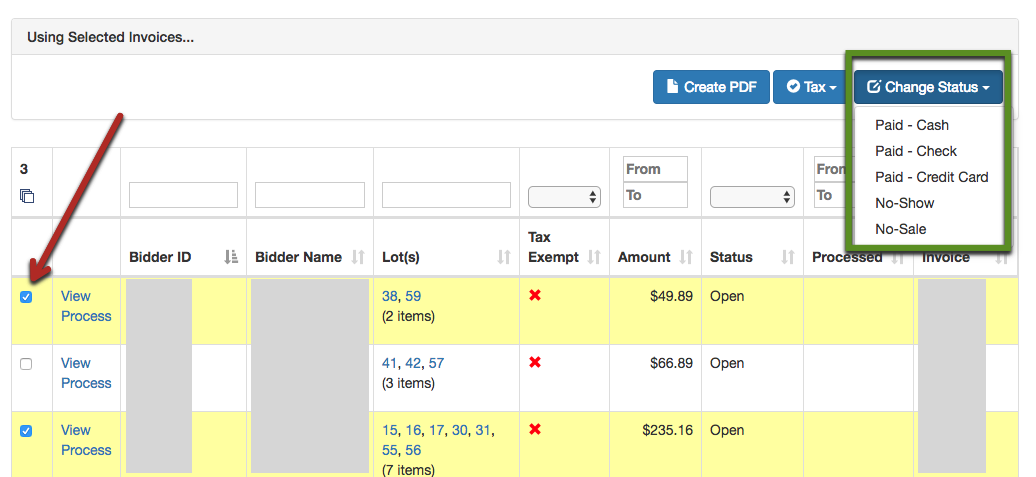
From your List Invoices page, check the box next to each invoice in a particular group, then select the appropriate option from the "Change Status" dropdown.
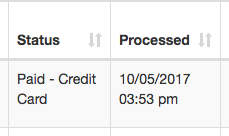
The invoice list will update with the payment status and processing time stamp.
You can then repeat this step for each of the other payment/processing statuses.
Note: when an invoice(s) is processed as a No-Sale, a 'Reason for No-Sale' box will appear. The affiliate will be required to pick the reason for the No-Sale from a drop down menu. If multiple invoices are selected, they will all be assigned the same no sale reason. If 'Other' is chosen from the drop down, the affiliate should provide further information in the 'Optional Notes' section.

Tax Exempt Invoices
If the winning bidder presents documentation of tax-exempt status and pays the Pre-Tax Subtotal on their invoice, you will need to mark the invoice as Tax Exempt in order for your Close Report and Sales Tax report to be accurate.
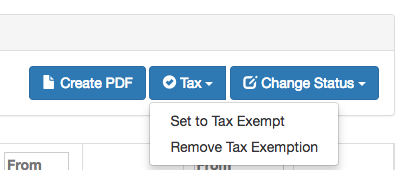
Tax-exempt status is assigned by selecting the appropriate invoice(s), clicking the Tax button and selecting "Set to Tax Exempt."
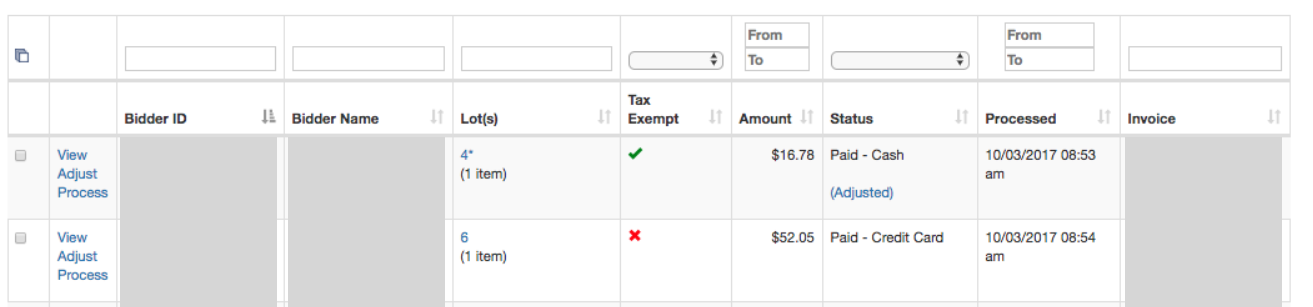
The invoice line will update with a green checkmark.
Settling Your Auction
Once all the invoices for an auction have been processed, a "Set Auction to Settled" button will appear on the List Invoices page. This is a "housekeeping" function only - clicking this button simply moves the auction off of the "Auctions Waiting for Settlement" section of your dashboard and into your auction history.

Tip: Some affiliates wait to "settle" their auction until they have paid their consignors, indicating that all activity related to the auction has been completed.
Comments
0 comments
Please sign in to leave a comment.